Pro Tips
Updates
How to Make a Video Invitation in 5 Minutes: The 2026 Step-by-Step Guide
Feb 15, 2026
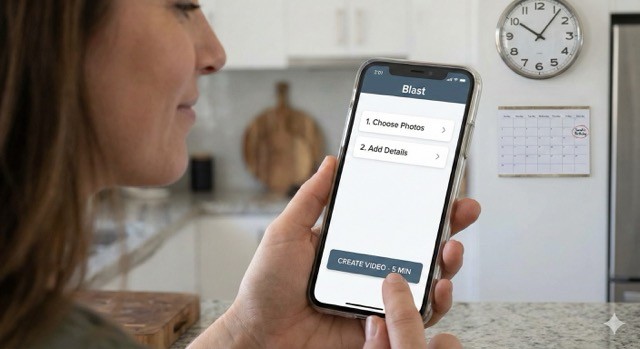
How to Make a Video Invitation in 5 Minutes (Even If You've Never Done It Before)
The 2 AM Panic That Started This Tutorial
My friend Rachel texted me at 2:03 AM on a Thursday.
"Help. My daughter's birthday party is Saturday. I need video invitations. I don't know how to use editing software. I'm freaking out."
I called her (yes, at 2 AM, because that's what friends do).
Five minutes later, she had a professional-looking video invitation. Thirty minutes later, she had sent it to 45 people and already had 12 RSVPs.
Her exact words: "Wait, that's it? That was... stupidly easy."
That's the thing about video invitations in 2026. The hard part isn't making them. The hard part is convincing yourself it's actually that simple.
Let me show you.
What You'll Need (Spoiler: Not Much)
Here's your complete supply list:
A smartphone OR computer (you're reading this, so you have one)
2-4 photos of the birthday person
Party details (date, time, location)
5 minutes
That's it. No video editing software. No design degree. No tutorial videos that take longer to watch than actually doing the thing.
The Three Ways to Make a Video Invitation
You have three options. I'm going to be brutally honest about each one.
Option 1: DIY with Video Editing Apps
Reality check: This takes 1-3 hours, not 5 minutes. Apps like iMovie, CapCut, or Canva are powerful but they have learning curves. You'll spend time figuring out transitions, text animations, and export settings.
Best for: People who enjoy the creative process and have time to tinker.
Worst for: Anyone who just wants it done and doesn't care about mastering video editing.
Option 2: Hire Someone on Fiverr
Reality check: Takes 3-7 days including revisions. Costs $30-100. You're explaining your vision to a stranger who might not get it right the first time.
Best for: People planning way ahead with specific, complex design requirements.
Worst for: Anyone who needs it done this week or doesn't want to deal with back-and-forth revisions.
Option 3: Use a Video Invitation Platform
Reality check: Actually takes 5-10 minutes. Platforms like Blast are built specifically for this one task. You pick a theme, upload photos, add details, done.
Best for: Everyone else. Seriously.
Worst for: Control freaks who need to customize every pixel.
For this tutorial, I'm showing you Option 3 because it's the only one that actually delivers on the "5 minutes" promise.
Step-by-Step: Making Your Video Invitation
Step 1: Pick Your Photos (2 minutes)
You need 2-4 good photos of the birthday person. Here's what works:
For kids' birthdays:
Close-up of their face (smiling, preferably)
Action shot (playing, laughing, being themselves)
Optional: group photo with friends or siblings
For adult birthdays:
Recent photo that actually looks like them (not from 2015)
Photo that matches the party vibe (casual for backyard BBQ, dressed up for milestone celebration)
Optional: throwback photo for milestone birthdays (30th, 40th, 50th)
Pro tip: Landscape orientation (horizontal) works better than portrait (vertical) for most video invitations. Your photos will fill the screen without awkward cropping.
Photos to avoid:
Blurry shots (seriously, just skip them)
Photos with busy, chaotic backgrounds
Pics where the birthday person is tiny in the corner
Group photos where you can't tell who the birthday person is
Step 2: Choose Your Theme (1 minute)
Most platforms have pre-designed themes. Pick one that matches:
The birthday person's age (playful for kids, sophisticated for adults)
The party vibe (casual BBQ vs formal dinner)
Their personality (superhero obsessed? Go with that.)
Don't overthink this. There's no wrong answer. If you like it, it works.
Popular themes that work for most parties:
Modern Minimalist (clean, works for any age)
Confetti & Balloons (festive, fun, kids love it)
Floral/Botanical (elegant, good for adult parties)
Themed (dinosaurs, unicorns, sports, etc.)
Step 3: Add Your Party Details (1 minute)
Type in:
Child's name and age (or adult's name for adult parties)
Date and time (be specific: "Saturday, March 15th at 2:00 PM")
Location (full address or venue name)
RSVP info (deadline and how to respond)
Critical detail everyone forgets: End time.
People need to know when they can leave. "2-5 PM" is way more helpful than just "2 PM" because then people assume they're stuck there until you awkwardly start cleaning up at 7 PM.
Step 4: Customize (Optional) (30 seconds)
Most platforms let you tweak:
Music (usually has built-in options)
Text color or font
Animation speed
My advice? The defaults are usually fine. Don't spend 20 minutes agonizing over font choices. Your guests care about the party details, not your typography preferences.
Step 5: Preview and Send (30 seconds)
Watch the preview. Check for typos (because you will have typos).
Common mistakes to catch:
Wrong date (you wrote March 15 but meant March 16)
Wrong year (happens more than you'd think)
Typo in the address (your guests will end up at the wrong house)
Missing RSVP deadline
If it looks good, hit send. Copy the link. Text/email it to your guest list.
Done.
Animated Birthday Invitations: The Data-Backed Reason Why Movement Wins in 2026
The Actual Tutorial: Using Blast (With Screenshots)
Here's the real step-by-step using Blast as the example. Other platforms work similarly.
Step 1: Go to getblast.video
Open your browser. No app download required. Works on phone or computer.
Step 2: Click "Create Invitation"
You'll see a bunch of theme options. Scroll through. Pick one you like.
Step 3: Upload Your Photos
Drag and drop or click to upload. You can use 2-4 photos.
The platform automatically:
Crops them to fit
Adjusts brightness if needed
Arranges them in the video
Step 4: Fill in Party Details
Simple form with fields for:
Name
Age (or milestone like "Sweet 16" or "30th")
Date
Time
Location
RSVP info
Type it in. It auto-populates the video as you type.
Step 5: Customize (If You Want)
Options to change:
Music track (pick from library)
Text color
Animation style
Default settings work great. But if you want to tweak, go for it.
Step 6: Preview
Click "Preview" to watch your video invitation.
It'll show you exactly what your guests will see. Check for errors. Watch it twice to be sure.
Step 7: Generate and Share
Click "Create Invitation."
Platform generates your video (takes about 30 seconds).
You get a link. Copy it. Text it to your guests. Done.
That's it. Seriously. Five minutes from start to finish.
What About Music?
Most platforms include royalty-free music libraries. You can:
Pick from their pre-selected tracks (easiest)
Upload your own music (if you have the rights to it)
Go with no music (not recommended, videos without sound feel incomplete)
Music selection tips:
Match the vibe (upbeat for kids, elegant for formal adult parties)
Not too loud (background music, not concert)
No lyrics unless the lyrics are relevant
Keep it short (5-15 seconds of music is plenty)
For kids' parties: Upbeat, playful instrumental tracks work best. Avoid nursery rhyme remixes unless you want to annoy every adult at the party.
For adult parties: Elegant instrumentals, acoustic tracks, or sophisticated background music. Nothing too energetic unless it's a dance party theme.
Sending Your Video Invitation: What Actually Works
You've made the invitation. Now you need to send it. Here's what works:
Best Methods (Highest Open Rates)
1. Text message (SMS): 95%+ open rate
Send the link directly
Add a one-line message: "Emma's 7th birthday party! Details here: [link]"
Don't just send the link with no context (looks like spam)
2. WhatsApp or iMessage: 90%+ open rate
Same as SMS - link with brief context
Bonus: people can easily forward to others
3. Email: 65-75% open rate
Use a clear subject line: "You're Invited: Emma's 7th Birthday Party"
Include the link in the email body
Add text details too in case the link doesn't work
Methods That Don't Work Well
Facebook event with link in description: 30% open rate
Instagram story: 50% open rate but expires in 24 hours
Posting to a group chat: 40% open rate (messages get buried)
Carrier pigeon: Unconfirmed but probably low
Troubleshooting: When Things Go Wrong
"The preview looks fine but the video won't load when I send it"
Check your internet connection
Try copying the link again (sometimes copy/paste errors happen)
Open the link in a private/incognito browser window to test
"People say they can't open the link"
Make sure it's the full link (not cut off)
Send directly instead of through a URL shortener
Ask if they're on an old phone (if yes, send them the party details via text as backup)
"I uploaded photos but they're cropped weird"
Most platforms let you adjust the crop
Or swap in different photos with less important stuff at the edges
Landscape photos (horizontal) usually crop better than portrait (vertical)
"I made a typo and already sent it to everyone"
Check if the platform lets you edit after creation
If not: send a quick follow-up message with the correction
Don't stress. People will still show up.
How This Compares to Other Methods
Method | Time | Cost | Skill Needed |
|---|---|---|---|
DIY Video Apps | 1-3 hours | Free-$15 | Moderate |
Hire Designer | 3-7 days | $30-200 | None |
Video Platforms | 5-10 min | Free-$10 | None |
Paper Invitations | 2-3 hours | $3-5 each | Low |
The numbers don't lie. If you want fast, easy, and professional, video invitation platforms win.
Real Examples: What People Actually Made
Sarah (daughter's 5th birthday):
"I used a unicorn theme, uploaded three photos from her last year, added the party info. Seven minutes start to finish including fixing my typo. Got 40 RSVPs in 24 hours."
Mike (son's bar mitzvah):
"Needed something more formal. Used a minimalist theme with elegant photos. Guests actually complimented the invitation. Took maybe 10 minutes because I kept second-guessing my photo choices."
Jessica (friend's surprise 30th):
"Made a video invitation for a surprise party. Used throwback photos from college. Everyone loved it. Took 6 minutes. Hardest part was finding good photos."
The Bottom Line
Making a video invitation in 5 minutes isn't marketing hype. It's actually, legitimately possible.
The secret? Use tools designed specifically for this task.
Don't use general-purpose video editors. Don't hire designers for simple projects. Don't overthink it.
Pick photos. Choose a theme. Add details. Send.
Your guests don't care if you spent 3 hours perfecting it or 5 minutes using a template. They care about:
Clear party details
Easy RSVP process
Something that makes them actually want to show up
A 5-minute video invitation delivers all three.
Ready to Make Your Video Invitation?
Pick a theme, upload photos, add details. Done in 5 minutes.
No credit card required. No app download. Just results.
FAQ: Making Video Invitations
Q: Do I need design skills to make a video invitation?
No. Platforms like Blast are built for people with zero design experience. You pick a template, upload photos, and type in details. The platform handles all the design work.
Q: Can I make this on my phone or do I need a computer?
Both work. Most platforms are mobile-friendly, so you can create directly from your phone. Computer gives you a bigger screen to see details, but phone works perfectly fine.
Q: What if I don't like how it turned out?
Most platforms let you go back and edit. Change photos, pick a different theme, adjust text. You can revise until you're happy with it.
Q: How do I send the video invitation once it's made?
You get a link. Copy it. Text or email it to your guests. They click the link and view the invitation. No downloads or apps required on their end.
Q: Can I include an RSVP link in the video invitation?
Yes. Most platforms let you add an RSVP link or form. Guests can RSVP directly from the invitation with one click.
Q: What if I need to change party details after sending?
If you used a platform, you can usually update the invitation and send a revised link. With paper invitations, you're stuck calling everyone individually.
Q: Will this work if my guests have old phones?
Yes. Video invitations are typically MP4 files or web links. If someone can watch a video on their phone (which everyone can), they can view your invitation.
Q: Do I own the video invitation or does the platform?
Check the platform's terms, but typically you own the content. You created it using their tools, similar to owning a document you made in Microsoft Word.
Why Kids' Party Invitations Take So Long (And How to Fix It)